UnitForge Web Pixel Art Character Generator

UnitForge is a free browser tool for making 2D pixel art characters. Assemble a character from swappable parts — body, hair, helmet, armor, weapons — preview the idle, move and attack animations, then export a single PNG or a sprite sheet for any 2D engine. The Godot 4 export writes the sprite sheet, a SpriteFrames .tres and a ready-to-run scene. No signup, and characters built from the built-in parts are free to use commercially.

📖 How to Use

Each dashed box mirrors the actual control on the Character tab. The arrow links each box to its explanation.

1. Layout

Character preview (canvas)
Parts panel

Left = preview, right = parts panel

The assembled character animates in real time on the left canvas. Everything — part selection, colors, adjustments, export — is operated from the right panel. The character faces left by default and all actions (attack, move) are left-oriented.

2. Choosing Parts

Swap parts with the dropdowns

Select Body, Hair, Helmet, Armor, Boots, Weapon and Shield individually. Choose None to unequip. In the list, marks custom parts stored in this browser.

The + button on the right uploads a custom part (see section 6).

Coloring (hair)

Categories with a color swatch can be tinted. White (#ffffff) is the original color.

3. Part Adjustment (position / tilt)

X Y R

X/Y = position (px), R = tilt (degrees)

  • X: horizontal (+ right), Y: vertical (+ down) — ±8px, 1px steps
  • R: tilt — weapons & shields only, ±90°, 15° steps
  • The weapon pivots around its grip and the shield around its center — the part stays in hand and the tilt carries into attack animations naturally

4. Visor Modes (closed helmets)

Sealed / Eyes visible / Open

  • Sealed: face fully covered (default)
  • Eyes visible: helmet shape intact, face shows only through the visor slit
  • Open: the whole face window opens — the helmet's interior is visible when worn alone

Applies only to closed-type helmets (marked "Closed"); caps and open helmets are unaffected.

5. Animation · Facing · Playback

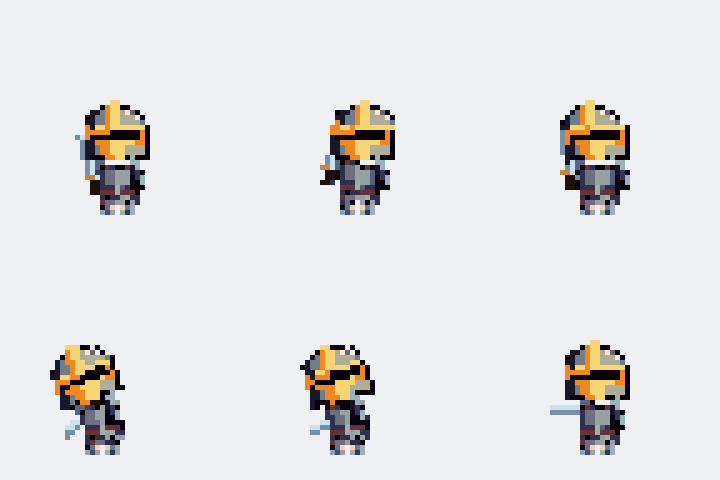
Melee sword attack animation
Melee
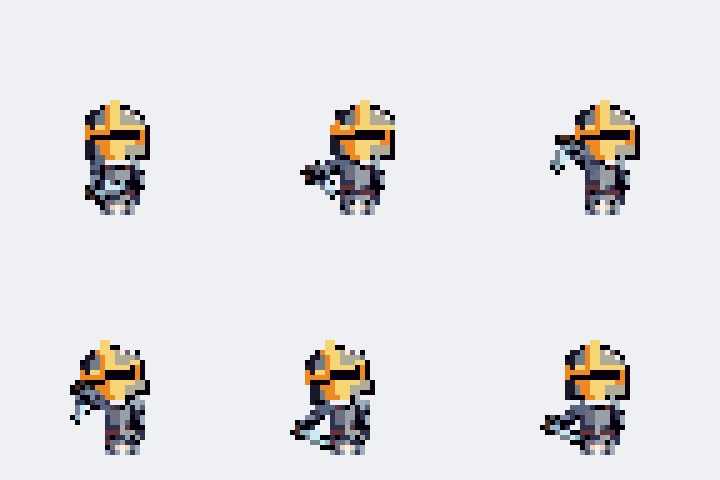
Dagger chop attack animation
Chop
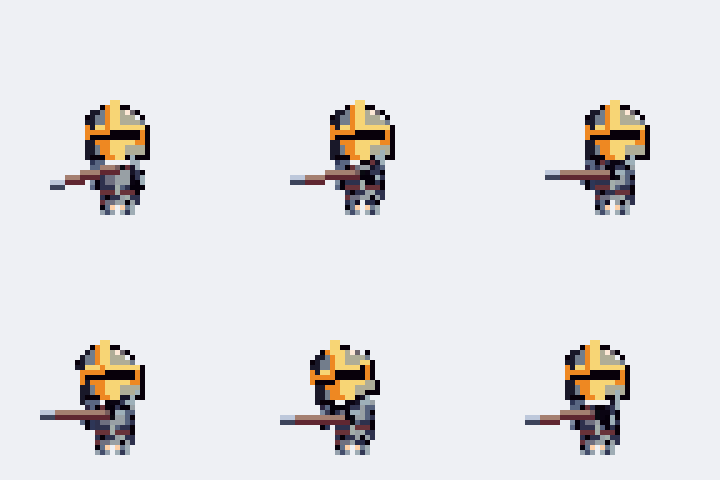
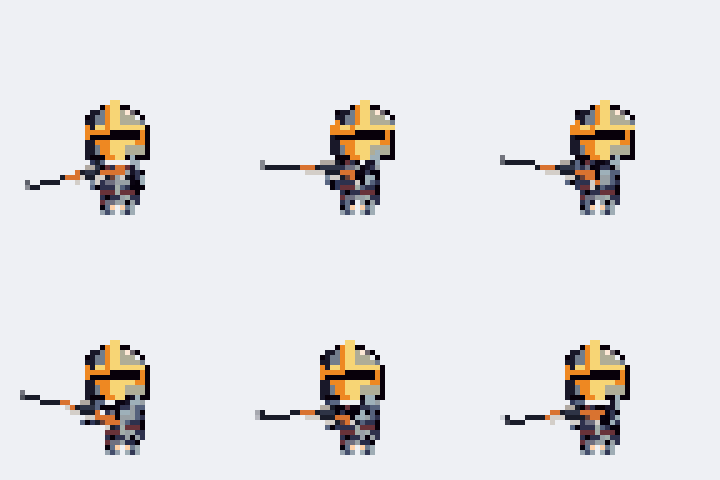
Two-hand spear thrust attack animation
Two-hand thrust
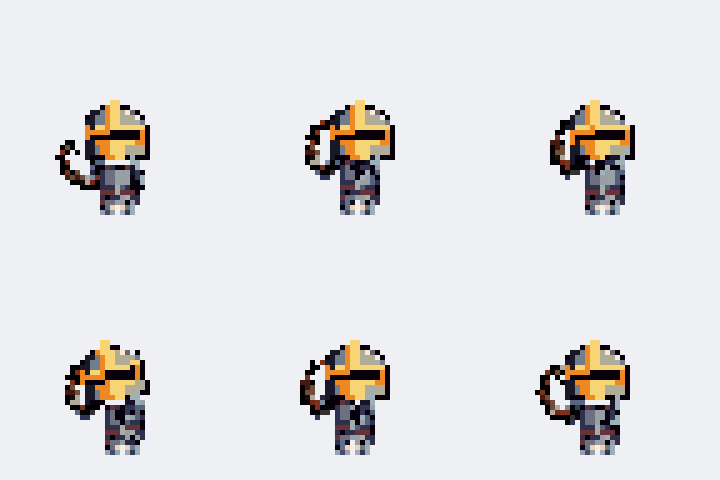
Bow attack animation
Bow
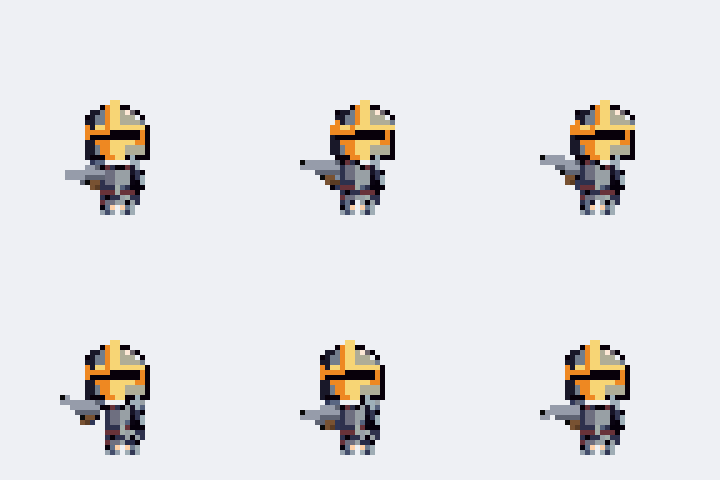
Handgun attack animation
Handgun
Long gun attack animation
Long gun
A pixel art knight looping through its idle, move and attack animations in UnitForge

Preview five motions

IDLE, MOVE, ATTACK, DAMAGED and DEATH play in real time. Use ↔ Flip to mirror the facing and ⏸ Pause to freeze a moment.

Equipping a bow or a firearm adds a dedicated attack (BOW_ATTACK / PISTOL_ATTACK) to the list — it disappears when you switch to another weapon.

6. Uploading Custom Parts

Drag & drop PNG here or click to select

Equip parts you drew yourself

Press the + button on any category to open the upload dialog and follow the spec shown there. Key rules:

  • Canvas is 32×32 dots — you may draw at N× scale (recommended 8× = 256×256, 1 dot = N×N block). Coordinates are always in dots
  • Weapon: grip at dot (23,23), blade pointing right (+x)
  • Hair and helmets: the entire cell is editable, including the face; painted pixels are preserved
  • Closed helmets: optional Eyes/Open views are generated separately; pure black #000000 marks the eye slit without changing the original
  • Use 📥 Download sample to get a correctly formatted example

Only PNG files are accepted and the file content is verified. You can drop multiple files at once (file name = part name). Uploaded parts appear with ★ and support adjustment, animation and export just like built-in parts.

Select a custom part in the list and a 🗑 button appears to delete it.

7. Backing Up Custom Parts

Keep your parts when the browser is cleared

Custom parts live only in this browser (★). Nothing is uploaded anywhere, and no account is needed — but clearing your browser data deletes them.

⬇ Export backup in the footer saves every custom part into a single .json file. ⬆ Import backup reads it back — on this machine or any other. Importing merges rather than overwrites, so re-importing the same file twice is safe.

8. Export

An exported UnitForge sprite sheet: six animation rows of eight 48×48 frames each

Single PNG / sprite sheets

  • Export PNG: one still IDLE pose (192×192)
  • Export Sheet: 8 frames of the animation chosen in "Sheet target" (48×48 native pixels per frame)
  • Choosing All stacks the available animations as rows in one sheet (e.g. 384×240 for 5)
  • Export for Godot: a ready-to-use sprite sheet + SpriteFrames (.tres) + optional scene (.tscn) for Godot 4 — drop them in your project and it plays
  • Part adjustments, tilt and facing are reflected in exports
  • The red dashed box on the stage shows the export frame — pixels outside it are clipped

9. Monsters tab

The Monsters tab is a ready-made bestiary — 22 creatures: 17 rigged across many types (large humanoids, slimes, ghosts, bats, four-legged beasts, bugs, a mushroom, a mimic, a serpent) plus 5 frame-animated horrors — demons (horned brutes…) and gore beasts that are mostly mouth. Pick one, choose a color (preset swatch or any color — applied to exports too), preview its 5 animations, and export a PNG, a sprite sheet or Godot 4 files (.png + SpriteFrames .tres + .tscn) just like a character.

  • Monsters have no equipment slots — pick a color, that is the whole customization
  • DEATH plays once and holds the final pose

10. Character Editor tab

Edit the complete base or any equipment part. Pen, eraser, fill, eyedropper, undo and redo are available.

  • The editor starts with the complete base. Select a body part to edit; the assembled preview shows the result.
  • When editing equipment, choose a reference base to check proportions across species.
  • Every cell, including the face, is editable. Loading, saving and uploading preserve your pixels and colors.
  • Pause to inspect a pose or restart an animation. DEATH holds its last frame.
  • Save as part adds a new custom item. X/Y and rotation are kept; rotation is shown in the preview while the drawing grid stays upright.

11. Copyright

All built-in parts are original assets. You are solely responsible for the copyright and legal standing of sprites you create or export and custom parts you upload. See 📢 Notice in the top-right for details.

Guide for AI

These days, AI agents do the building. The specification below is a complete, tested operating manual for UnitForge — every selector, part, animation and export format. Copy it and paste it to your AI (or give it the URL on the right), then ask in plain language, for example:

"Make a dark knight holding a rifle, face it right, and export the full sprite sheet."
"Make a red-haired ranger with a bow and export a PNG portrait."
"Upload my spear.png as a two-hand thrust weapon and preview SPEAR_ATTACK."
Direct URL for AI agents: unitforge.net/ai-guide.md